AI Upscale Photo Online: How It Works, When to Use It, and How to Get the Best Results
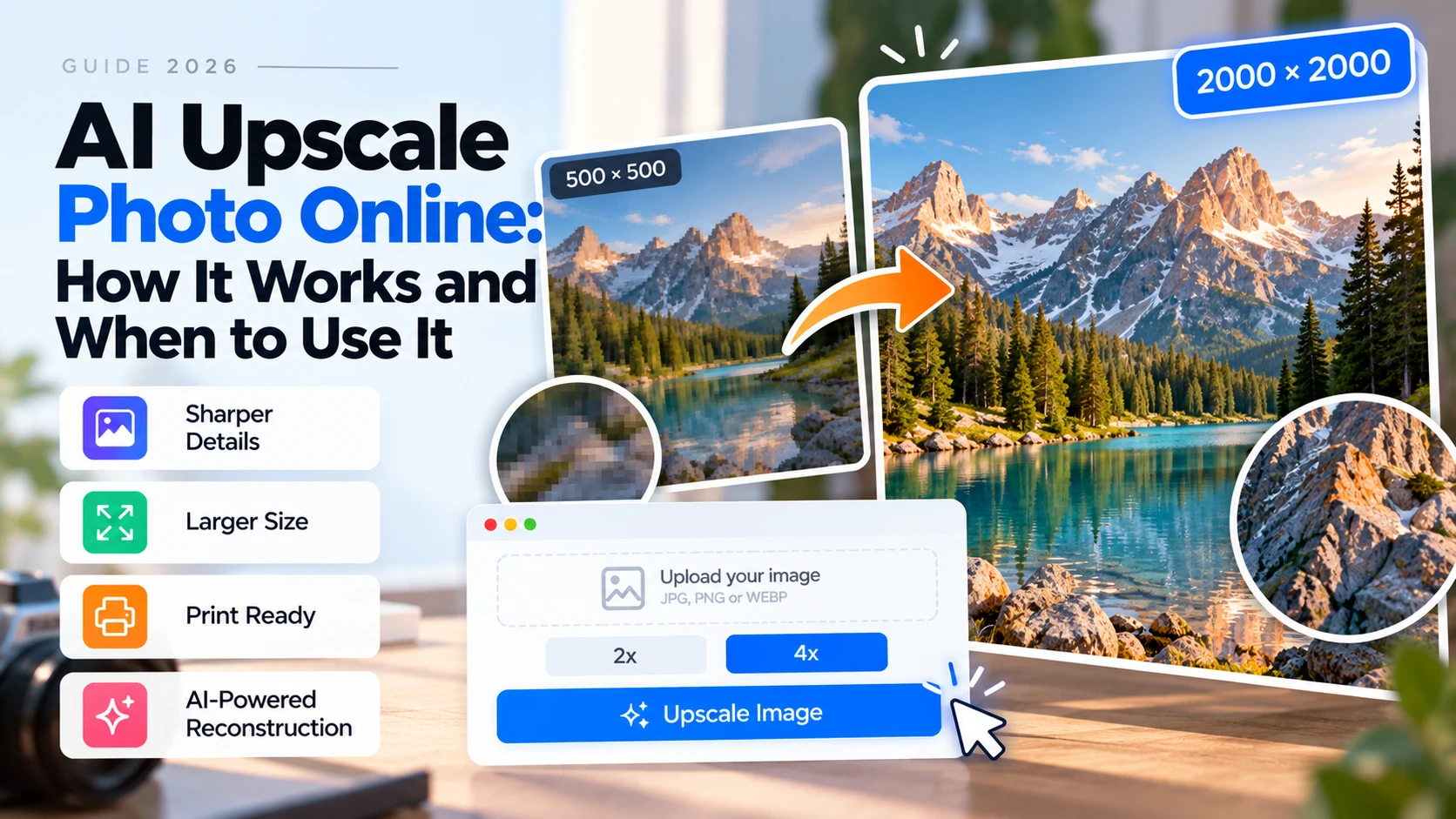
AI photo upscaling used to mean desktop software, processing queues, and technical knowledge. Today it runs entirely in the browser — upload a photo, get a larger, sharper version back in seconds, no account required. This guide covers what browser-based AI upscaling can do, how to get reliable results, and the situations where it makes the most practical difference.
What Online AI Upscaling Does
A browser-based AI upscaler takes a low-resolution photo and produces a larger version with reconstructed detail. The key word is reconstructed — not just stretched. Traditional resizing fills new pixels by blending neighboring existing ones. AI upscaling uses a neural network trained on image pairs to predict what fine detail would look like at higher resolution, and generates new pixels based on that prediction.
The result is visibly sharper than traditional upscaling. Edges are crisper. Texture — fabric, skin, foliage, surface grain — resolves rather than blurs. The difference is most pronounced at 4x scale, where traditional interpolation produces noticeably soft output and AI reconstruction maintains genuine sharpness.
The online aspect matters practically. Nothing to install, no processing power required from your device, works on any operating system and browser. The upload goes to a server, is processed, and the result is returned ready to download.
The Most Common Reasons to Upscale a Photo Online
How to Get the Best Results
The quality of an AI upscale is directly tied to the quality of the source. A few habits consistently improve output:
- Always use the highest-quality version of the image available. If you have both a PNG and a JPEG, use the PNG — it has no lossy compression. If only JPEG is available, use the largest file size version, which has the least compression applied.
- Don't pre-sharpen or pre-process the image before uploading. Sharpening adds halos and edge artifacts that the AI then has to work around. Let the tool process the clean source.
- Check for heavy JPEG compression artifacts (blocky patterns visible at 100% zoom) before upscaling. The AI will work around them, but they can be more visible in the larger output than in the source. When possible, go back to an earlier export or a less-compressed version.
- Match the scale factor to your actual need. 2x for moderate enlargement, 4x when the source is small or heavily cropped. A 4x upscale of a large image creates a very large file with minimal visible benefit over 2x.
Reviewing the Output
Before using the upscaled image, check it at 100% zoom in three types of areas:
- Textured surfaces — fabric, hair, product packaging, skin, foliage. These show the clearest difference between AI and traditional upscaling. Sharp, defined texture means the reconstruction worked. Smooth or blurry texture means the source was too limited or the tool didn't perform well.
- Hard edges — product outlines, text on labels, architectural lines. These should be crisp. A halo or soft fringe around hard edges is a sign of over-processing.
- Smooth areas — backgrounds, sky, plain surfaces. These should be clean without noise or banding introduced by the upscaling process.
After Downloading: What to Do with the File
The downloaded file is the full-resolution output with no additional compression from the tool. Depending on where it's going:
- E-commerce listings — upload directly. The output from a 4x upscale of a 500px source (resulting in a 2000px image) meets zoom requirements on Amazon, Etsy, and Shopify without further processing.
- Web pages — compress before adding to your site. Full-resolution upscaled images are significantly larger than needed for typical web display. Use a compression tool to match the display dimensions and reduce load time.
- Print — use the full output without re-compressing. Send the downloaded file to your print service as-is. Large-format print needs maximum available resolution.
- Archiving — keep the full output alongside the original. Both serve different purposes.
To AI upscale photo online, Phototune AI image upscaler handles the full range of use cases above — 2x and 4x scale options, no account required, full-resolution download ready in seconds.
What AI Upscaling Can't Fix
It's worth being direct about the limits. AI upscaling adds pixels and reconstructs texture — it doesn't correct problems in the original capture:
- Out-of-focus or motion-blurred photos get larger but stay blurry — upscaling can't restore lost focus
- Photos taken in very low light with heavy noise may have the noise amplified at larger size
- Very small images (under 200x200 pixels) have limited information to reconstruct from — results are better than traditional upscaling but shouldn't be expected to match a properly captured source
- Color casts and exposure problems in the original carry through to the upscaled version — fix these first if they matter for the output