A Closer Look at Modern Online PDF Conversion Tools
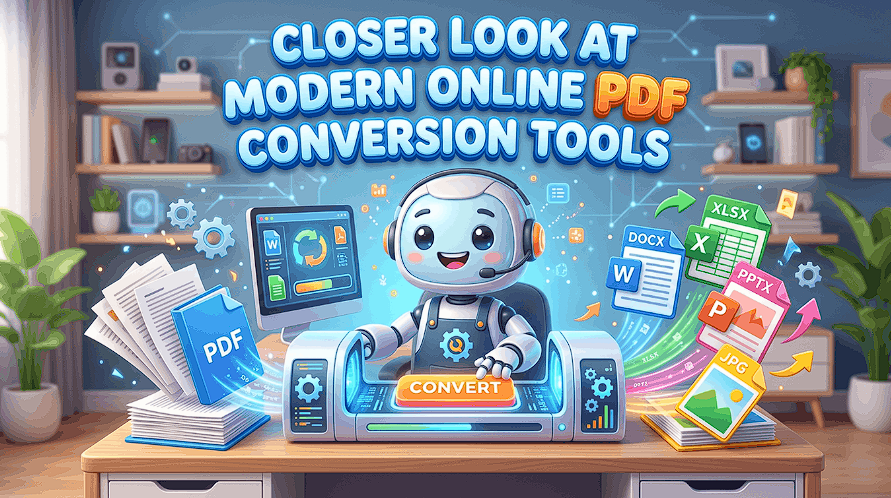
Contemporary web-based PDF converters allow users to convert documents from PDF to non-PDF or vice versa quickly and conveniently.
These modern online PDF converters run on virtually every device, require no download, and typically preserve formatting and images. Most have features to manage large files, apply password locks, or combine pages.
A few even allow you to edit or sign documents on the site. The following sections cover what to expect from these tools.
Beyond Conversion
Today’s online PDF converters do more than simply switch file formats. For professionals and casual users alike, these utilities have become an integral component of processing documents. They make work slick, secure, and shareable.
With more people working remotely from multiple locations, it’s useful that users are able to convert files wherever they have an internet connection.
Although these tools bring speed and convenience, they have their own hazards. To use them well, we need to look beyond the conversion and see how they secure files, save time, and maintain formatting.
Document Integrity
Preserving a document’s look and feel is paramount in conversion. As a PDF converts to a Word or Excel doc, the formatting, graphics, and text must remain intact. If a chart is shifted or a logo is missing, the entire thing may lose its impact or appear unprofessional.
Most modern tools will attempt to maintain the original formatting, but not all tools do so gracefully.
For instance, certain free online converters may overlook minor elements, such as font styles or table alignment. This can wreak havoc on reports, business contracts, and presentations where everything counts.
Relying on reputable conversion software, such as Adobe Acrobat or Smallpdf, ensures that the converted document retains the same content and formatting as the original. Even with good tools, big files or complicated layouts can trip things up. Free users are typically met with size limits, which might require them to slice up files or sacrifice features.
Always review the converted file to make sure that some parts weren’t omitted or messed up — especially if you’re sharing it with clients or teammates.
Workflow Automation
With document automation, you can save time and reduce errors. For example, if online PDF tools include batch processing, you can modify multiple files with a single prompt rather than clicking each individually. This is handy for offices that process copious invoices, contracts, or forms.
To set up workflow automation in document handling:
- Pick a conversion tool that supports batch processing.
- Set up folders for incoming and finished files.
- Let them with built-in routing of documents to the right people.
- Turn on automatic notifications for approvals or changes.
- Review converted files for accuracy.
This type of workflow gets teams collaborating, even remotely. By eliminating manual steps, your team can spend more time on what matters. Think automated routing. Your docs get to the right person quicker, leading to faster approvals and fewer hang-ups.
Data Security
Compressing any sensitive files online raises immediate security concerns. When users upload documents to a third-party server, there is always a chance of data leaks or breaches. With cyber attacks on the increase, it is critical to verify the security measures of any PDF tool.
Not all online converters are created equal. Other tools encrypt uploads and downloads, protecting data from external access. Others might retain files on their servers for extended periods, increasing the danger.
Desktop converters are safer for very private or sensitive files, as they keep everything local and mitigate outside threats. Conforming with data laws, like GDPR, is crucial for businesses. Trustworthy services will detail their data policies and provide options such as password-protecting or deleting files once converted.
Always, always, always see if you can do either of these when you upload something important to share online!
Advantages Beyond Conversion
Today’s PDF tools go beyond conversion. They simplify cross-platform document management, searching, and sharing. Additional functionalities like cloud storage, editing, and e-signatures assist users in collaborating more effectively.
Less file hassle exists because it works across software. Collaboration is easier. Online tools are convenient and intuitive, which makes them suitable for users of various technical abilities or financial constraints.
File size limits and internet requirements remain obstacles. Desktop tools might still win for people desiring that additional control or privacy.
Evaluating Modern Tools
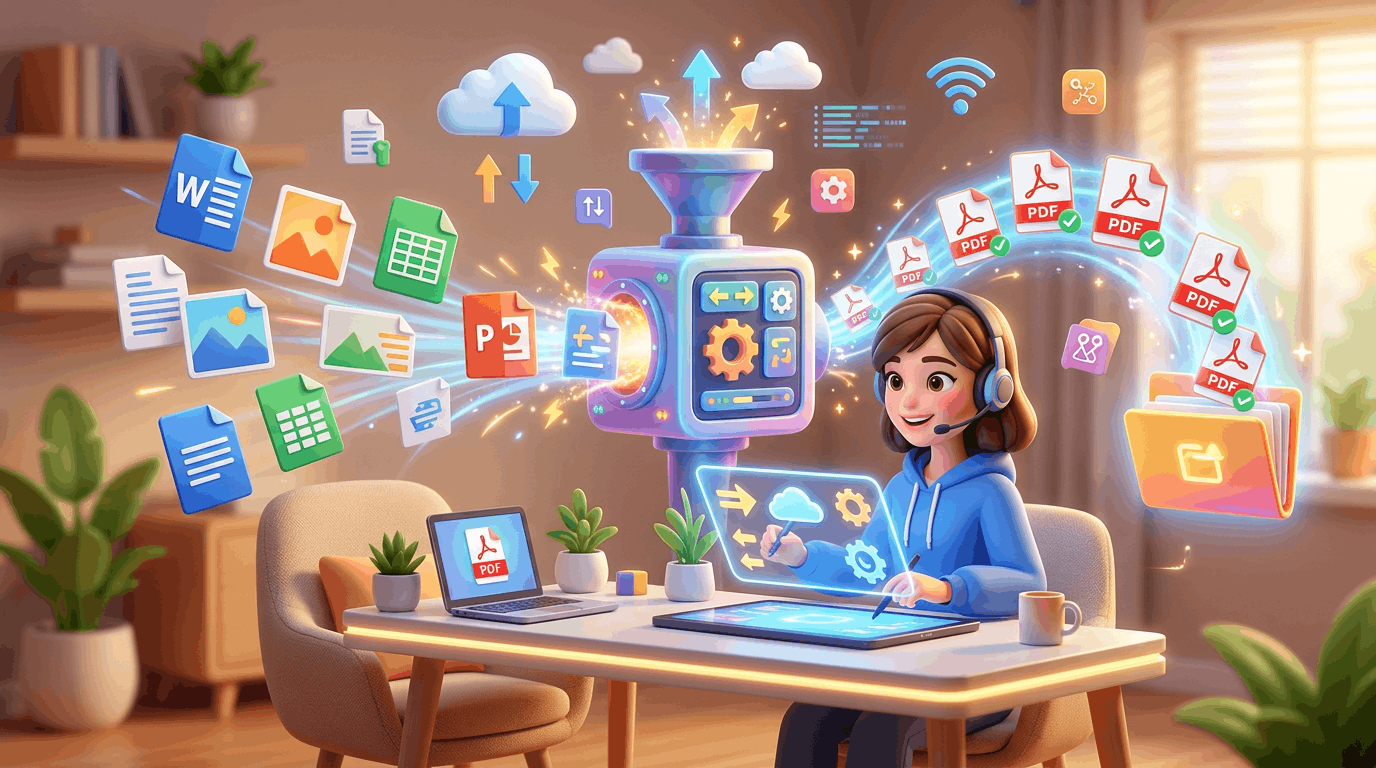
Modern online PDF conversion tools are every shape and size. They vary from bare-bones web apps to full-featured platforms complete with editing, OCR, and cloud sync. Selecting the best tool involves analyzing fundamental capabilities, transformation quality, interface, privacy, and compatibility. The table below illustrates some important distinctions.
1. Conversion Quality
Files to PDF or back, quality stays supreme. The top tools preserve the look and layout as much as possible. Others, such as Adobe PDF, excel with sophisticated files, even those with pictures, tables, or weird fonts. The rest can slip—text may break, images might blur, or formatting shift.
For files with lots of charts, forms, or languages, leading tools deploy OCR (optical character recognition) to produce crisp, legible text. User reviews frequently cite Smallpdf and Soda PDF for their consistent conversion performance. Free tools can cut corners, so verify results before relying on them for critical tasks.
2. Feature Depth
Simple converters switch files, but most people need a little more. OCR enables you to transform scanned pages into editable text. Bonus features like split, merge, and compress save you time, and batch processing is a dream for large projects.
For users who frequently work with multiple documents, an online merge PDF tool can simplify the process of combining related files into one organized document.
Whether you're putting together business reports, invoices, or project materials, merging PDFs helps keep important information in one place and makes sharing files with colleagues or clients more convenient.
Adobe PDF leads with deep features, even though some users report that the menus are difficult to learn. Soda PDF and iLovePDF are both excellent editors, but can sometimes lack precise control. If you have to switch files once in a while, easier tools might work better, while power users want full suites.
3. User Experience
It is user experience that determines how quick and friction-free your workflow is. A handful of converters load quickly and guide you through every step. Others feel cluttered.
Smallpdf scores points with its minimalistic design and user-friendly drag-and-drop. PDF24 Tools is easy and free, but a few features are rudimentary. Customer support is hit or miss. Paid tools usually assist via chat or email, and free ones depend on guides or community forums.
Never pay without giving a free plan or demo a whirl.
4. Security Protocols
Security counts, particularly for personal or work documents. Top tools utilize encryption to secure files during both upload and download. Others, such as Adobe PDF, have to comply with strict regulations like GDPR and HIPAA.
Consider password locks, file expiration, and cloud privacy. Online-only tools often keep copies of your files on their own servers. Make sure you read their privacy policies before uploading anything private. If you want complete control, desktop tools such as PDF24 enable you to work offline.
5. Integration Power
Great converters work into your daily workflow. Most connect with cloud drives such as Google Drive or Dropbox, so you can grab and store files without additional effort. Others link with email or team tools for more immediate sharing.
Paid tools frequently have APIs, allowing you to create automated workflows or integrate with other applications. If you deal with many docs, tight integration can save hours.
The Cost Question
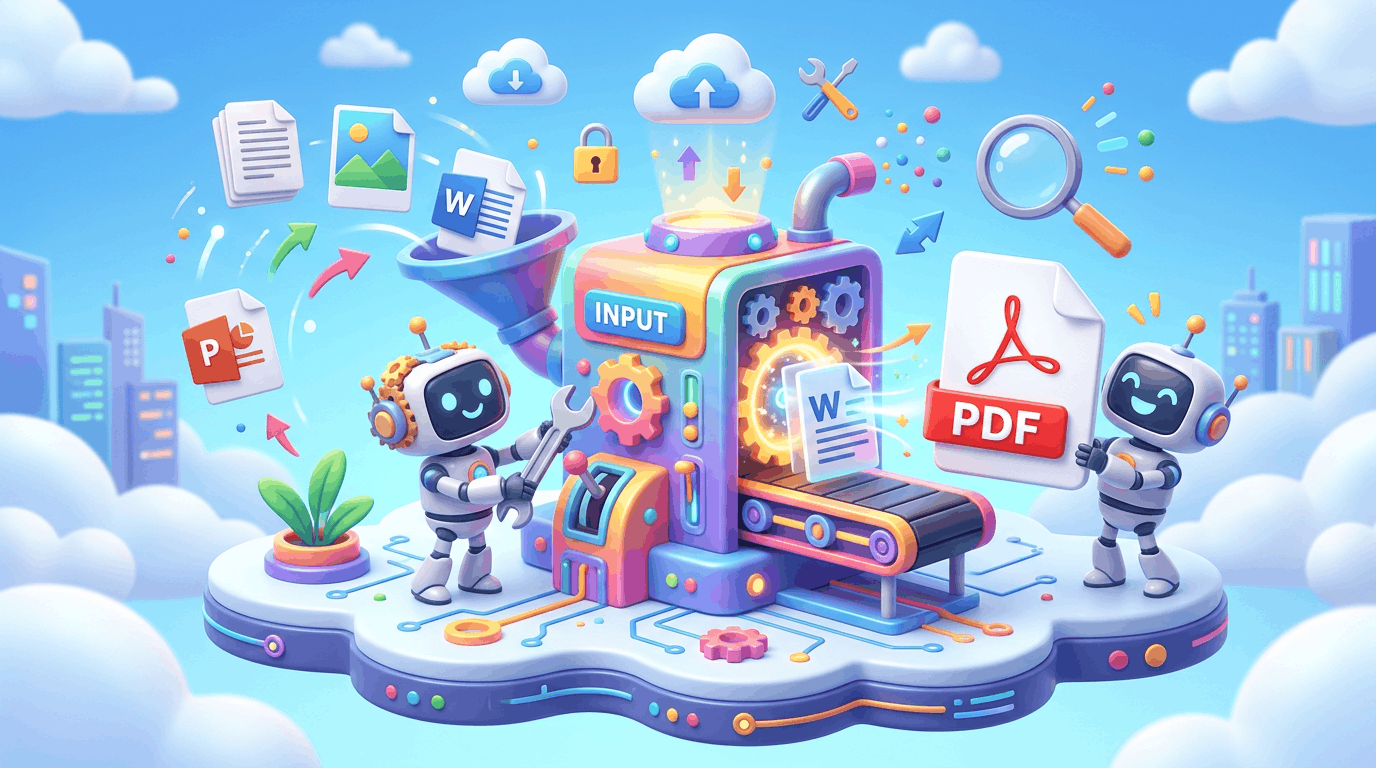
Contemporary online pdf converters utilize a diverse array of pricing models. A few are free, others depend on subscriptions, one-time payments or fees on a pay per use basis. Costs can stack pretty quickly for big-volume users, and it’s not always clear what you’re getting for your dollars.
The type of converter, whether online or desktop, influences the price and capabilities of this tool.
Subscription Tiers
Free plans go for those who just want to convert a handful of files. They generally impose a file size limit, as most max out at 10MB, a daily conversion limit, or place ads. Some require an email address but skip pay anyway.
Entry-level paid plans unlock larger file sizes, higher speed, and batch conversion. Mid-tier plans typically include OCR, cloud storage, and priority support. Business or enterprise plans might feature API access, team management, and full-service support for high-volume needs at that end.
Monthly subscriptions are more fluid and fit folks who only want to use it in the short term. Annual plans provide better value, usually saving you as much as 30% over paying monthly. The right pick depends on your usage. Power users who convert documents frequently or require consistent access are likely to find annual plans significantly less expensive.
Most tools provide a free trial. This assists users in verifying that the features fit their needs prior to paying. Its time is best spent testing speed, quality, and ease of use.
Hidden Fees
Hidden fees come in all shapes. Some converters charge you extra for advanced tasks such as editing, merging, or OCR, even after you purchase a basic plan. Some others will bill you for storage if you leave files online too long. Ads can show up unless you purchase an ad-free tier.
A few pay-per-use services appear inexpensive initially but become costly if your volumes spike. Take a look at the fine print. Most tools say “unlimited” but then restrict by file size, pages, or monthly quota. Bulk usage by teams can push you into a higher, more costly tier.
Total price, including all the extras, comparison helps you avoid surprises later. Cost Question: Desktop converters usually have a one-time fee, which sounds straightforward. Upgrades or support can incur additional charges. For heavy users, this can still beat paying for Web-based utilities, especially if offline access is essential.
True Value
It’s not just about cost when it comes to a PDF converter. It’s about how much time and stress it saves. A tool that can manage large tasks, batch documents, or work across any platform can save you hours each month.
For both individuals and teams, speed and reliability frequently translate into higher-quality output and less wasted effort. If you’re a long-time user, desktop tools can pay off if you process lots of files or want more features.
Online tools, particularly those with solid support and updates, fit users who want to convert when mobile or share access between teammates. User reviews and expert ratings provide insights into performance, uptime, and support.
Seek out tools that combine reasonable rates, nice functionality, and solid assistance when it all goes awry.
Advanced Capabilities
Today’s online PDF converters offer much more than plain old file conversion. These tools employ intelligent capabilities to enhance precision, efficiency, and collaboration. They can handle numerous file formats and integrate perfectly into common document-based tasks, rendering them great for individual users and large teams alike.
Intelligent OCR
OCR allows users to convert scanned documents and photos into editable files. It’s much more than copy-pasting. Advanced OCR-Equipped Tools can read multiple scripts, fonts, and layouts, ensuring that text is captured accurately, regardless of language or page formatting.
For instance, turning a copy of a contract or invoice into a Word file or extracting tables from a paper form for Excel becomes straightforward and quick. Other tools layer on smart data capture and IDP, which aids in identifying and reading sophisticated patterns in tidy and unstructured data.
Even handwritten forms or fuzzy scans can be converted to crisp documents. Most PDF converters these days even allow you to choose output formats such as Word, Excel, PowerPoint or plain text, so it’s easy to repurpose the data for other projects. These capabilities assist with finding and reading PDFs, which could be crucial for individuals who require information quickly or utilize screen readers.
Batch Processing
Batch processing allows users to convert multiple PDFs at once. This is helpful for anyone who routinely handles bulk files, from HR departments updating employee files to professors organizing student papers. Batch tools are different, though.
Instead of dragging individual files one at a time, batch tools can process hundreds of files literally in a single run, saving you both time and effort. Many of these implements allow you to define rules about naming, location, and format of the files.
This simplifies integrating the conversion step directly into larger digital workflows. Some online and desktop solutions go a step further by allowing users to automate these steps, so files are grabbed and modified without lifting a finger. This keeps everything tidy and ensures nothing gets overlooked, even when handling giant file sets.
Collaborative Editing
Today’s PDF converters simplify team collaboration on documents. Capabilities such as real-time editing allow multiple collaborators to work on a document simultaneously, which comes in handy for work that requires quick revisions or speedy updates.
Sharing links for comments and notes eliminates the need for sending emails back and forth or losing track of new versions. Version control is a critical instrument, enabling teams to observe modifications, identify the contributors, and track the timing.
This not only aids in maintaining a clean audit trail, but also facilitates the correction of errors. Some PDF tools integrate with project management apps, so teams can align document work with their primary tasks. That is, editing, feedback, and progress tracking occur in the same place, reducing confusion and saving time.
Future-Proofing Documents
Digital documents have become living artifacts, influenced by emerging technologies and universal requirements. Today’s PDF converters do more than just convert. They help preserve documents securely, trustworthily, and easily accessible as technology and standards continue to change.
Today, future-proofing documents is about combining security, accessibility, and convenience for all.
Accessibility Standards
PDFs should be accessible to everyone. Adherence to accessibility standards is important for legal purposes and inclusivity. Screen reader support, image alt text, and accessible navigation are non-negotiables.
Creating a checklist helps cover the basics: tagged structure, logical reading order, descriptive links, and sufficient contrast. Include special goodies like text-to-speech, keyboard navigation, and large print. These assist people with visual, auditory, or motor impairments.
They’re important for future-proofing documents. By prioritizing these details in PDFs, you’re building trust, as more people can read and act on the information.
Interactive forms, bookmarks, and hyperlinks enable easier navigation of documents. Features like adding metadata, document language, and headings accommodate a broader audience, enabling greater accessibility for content across devices and platforms.
Accessible PDFs remove friction for individuals using assistive technology. Achieving these standards is not only good practice; it’s an essential aspect of future-proofing documents in our digital age.
Archival Formats
Future-proofing these documents is an issue for a lot of organizations. PDF/A is a great archival PDF format for this. It locks down fonts, colors, and structure, preventing changes and preserving the document as it was when created.
This is crucial for legal, financial, or historical documentation where evidence and precision are important. Archival formats come with benefits. They help maintain the integrity of files, ensure that content stays readable as software changes, and support easy verification.
A few tools these days even export to PDF/A, XML, or even plain text. Selecting the appropriate format makes auditing, legal review, and knowledge management much easier.
File integrity is important. Through digital badges or microcredentials, it authenticates the document’s source and protects it from tampering. Securely encrypted files and digital signature-enabled formats can be game changers for trust and compliance.
Emerging AI
PDFs won’t be the same because AI will transform document conversion. AI-powered tools have more accurate, faster, and smarter automation. OCR can convert scanned images into searchable text, allowing you to more easily locate facts within massive repositories.
AI aids error-spotting, detail-filling, and tampering detection. Other tools leverage AI to automate whole workflows, like tagging for accessibility or filing based on the contents.
As AI gets smarter, it can do more, like authenticate or recommend the optimal format. As AI content takes off, document authenticity is crucial.
Some smart tools that add watermarks, digital badges, or track changes can help keep documents safe and easy to verify.
My Takeaway
These days, online PDF converters offer a variety of features at various price points. Choosing the correct one is about knowing what your requirements are, how you work, and what you expect the tool to accomplish. The trick is real-world applications, not the general magic of all-in-one.
It assists you in balancing how each tool integrates into your routine, its user-friendliness for your team, and its scalability.
The Right Fit
Begin by listing your priorities. For some users, the focus is on fast batch conversions for large files, while others may need advanced features such as OCR or simple tools for merging, splitting, and editing documents.
If your files come in multiple formats, it’s important to choose a solution that supports DOCX, XLSX, JPG, and other common formats, not just PDFs. Tools like this instant document conversion tool are designed to handle a wide range of file types, allowing users to convert and manage documents in one place without switching between multiple platforms.
Next, consider whether the tool can scale with your needs. If your workload grows or more team members require access, the platform should continue to perform efficiently. ConvertPDF.ai, for example, is built as a browser-based solution, making it easy to use across teams without installation barriers. For mixed-skill teams, a clean and intuitive interface is essential to reduce confusion and minimize downtime.
Device compatibility is another important factor, especially for remote teams. A good tool should work seamlessly across desktops, laptops, tablets, and smartphones.
Pricing is also a key consideration. Some tools operate on a usage basis, while others offer monthly or annual subscription plans. Free versions can be helpful, but they may come with limitations such as restricted features or usage caps.
Ultimately, the goal is to find a balance between functionality and affordability. A reliable tool should provide enough power to meet your needs while remaining cost-effective as your workflow grows.
The Non-Negotiables
Security is not a choice. Ensure that any PDF converter you select utilizes encryption while uploading and downloading. This is crucial if you work with confidential information, such as customer agreements, health documents, or accounting statements.
Reliability counts as well because if the tool fails or crashes in the middle of a big project, you could lose time and trust.
Don’t forget usability. Even the most feature-rich tool will disappoint if your team resists using it. Search for easy navigation, drag-and-drop uploads, and useful hints.
A lot of the global teams I know require tools to be in multiple languages, so look for multilingual support if that’s important to you.
Don’t overlook file format support. Others sparkle with PDFs and Office docs yet falter with more obscure ones such as CAD drawings or HTML. If you work with diverse formats, try these features before you buy.
Customer support is the final note. Even the finest software can get tripped up. Ensure the tool provides support avenues such as live chat, email, or a comprehensive help center.
That kind of fast, useful assistance can really matter when you’re racing against a deadline.
Conclusion
Modern online PDF converter tools do more than just flip file types. They process big files quickly, operate across devices, and prioritize file security. Some tools even include other features, such as text editing, image tweaks, or batch work, which help save time.
Transparent pricing plans assist in choosing what fits your budget. As updates continue to roll out, these tools remain useful and user-friendly. Choosing the right one requires some research, but it rewards you by making your work easier.
For better results, test out a couple of favorites. See which one complements your flow and needs best. Being receptive to such updates is what keeps your workflow lean and stress-free.